



🚀 New Features
AI Assistant: Connect your own Anthropic (Claude) account
Within the Custom AI provider family, Anthropic (Claude) joins the list of directly available providers. Organizations that want to run Dastra's AI assistant on their own account — rather than on the Dastra quota — can now select Anthropic in just a few clicks.
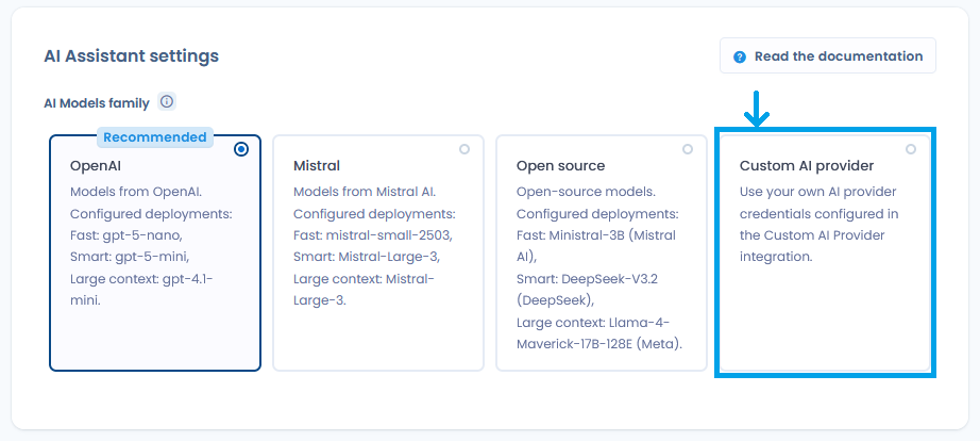
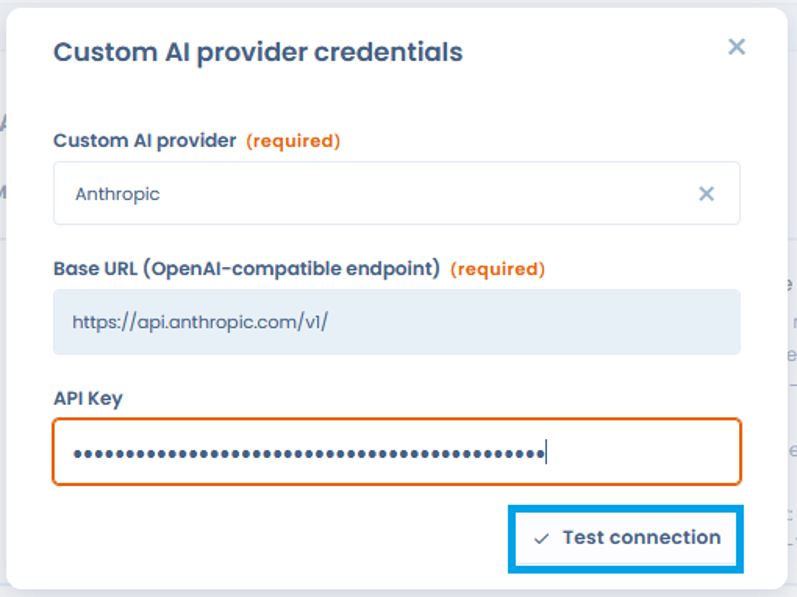
- Anthropic's endpoint is pre-filled: you only need to enter your API key
- A "Test connection" button checks that the credentials are valid before saving
- You choose the Claude model to use for each type of operation — Fast, Smart and Large Context — with a recommended model by default
- The API key is never displayed again in clear text, and credential management stays restricted to users with integration rights
AI Systems: Restore a previous version
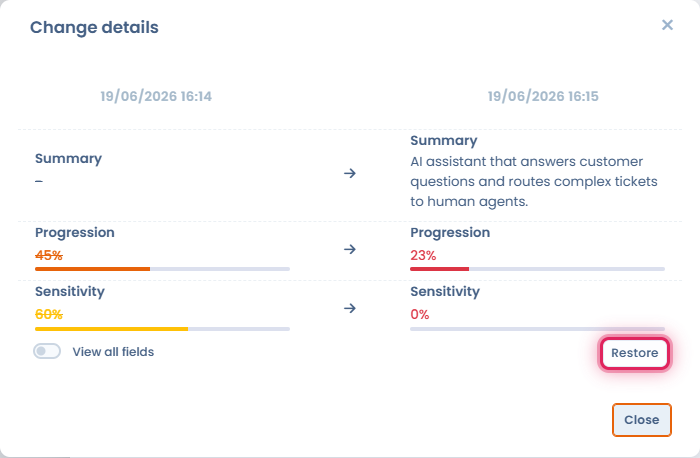
You can now restore a past version of an AI system directly from the Activity History panel of its record — as was already possible for data processings.
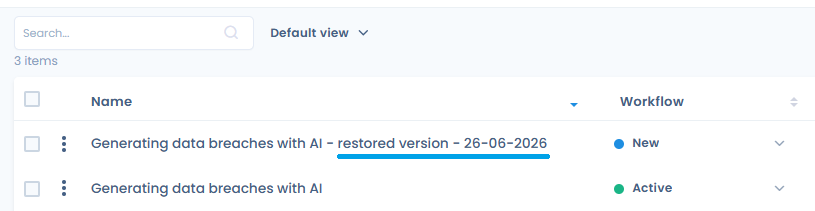
Each creation or update entry shows a restore button (visible only to users with write permission). After confirmation, a new AI system is created from the selected version's data — its name is automatically suffixed "- restored version - [date]" — and you are redirected to that new record. The original AI system remains unchanged.
Cross-workspace statistics
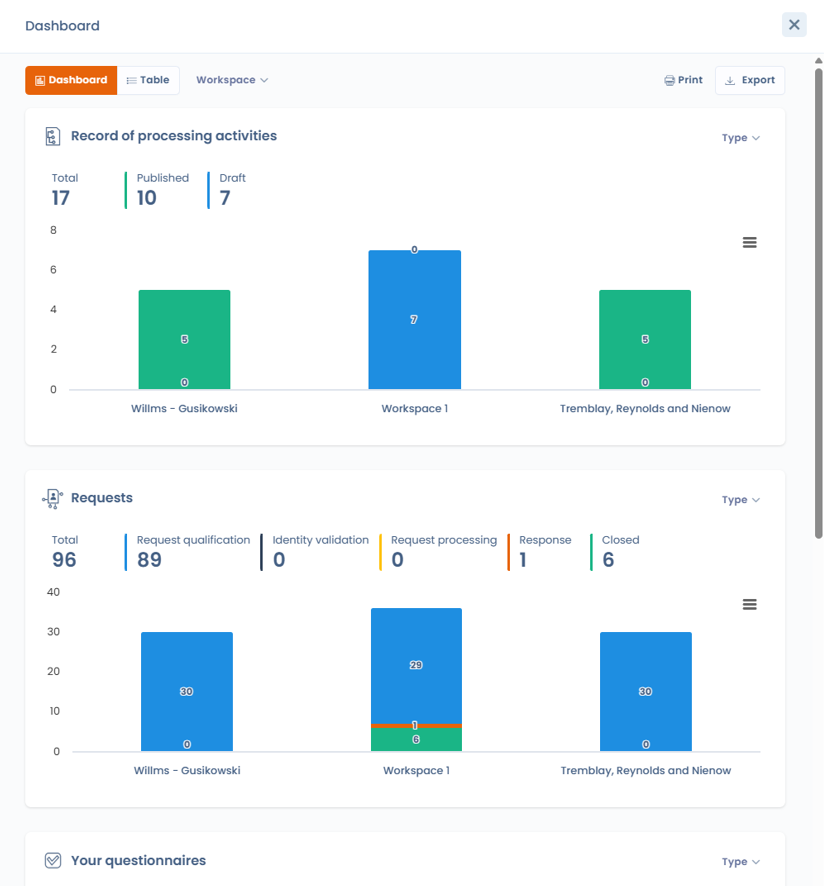
Dastra now offers a consolidated statistics dashboard spanning all of your workspaces.
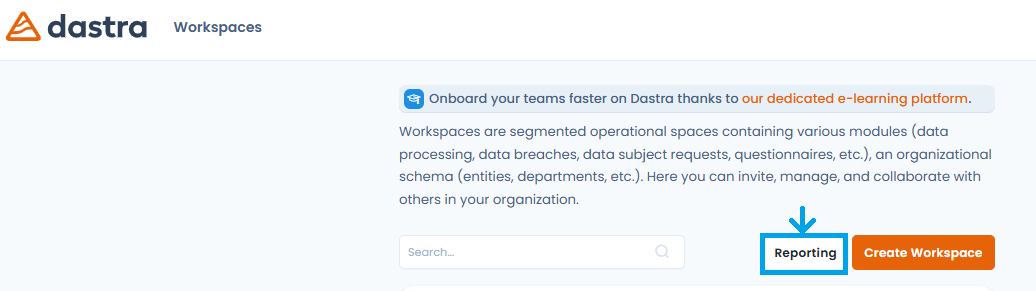 Compare key indicators across every workspace at a glance: records of processing activities (ROPA), data subject requests (DSR), data breaches, questionnaires, AI systems and tasks. Data is shown as widgets and charts, with dynamic filters (by workspace, by organizational unit, by type) plus print and export options.
Questionnaires: Cancel a questionnaire
Until now, when a questionnaire response was deemed non-compliant, the only option available during the review step was to request corrections (sending it back to the "Started" status). With no negative terminal status available, owners had to switch to the list view to cancel the questionnaire or leave the response stuck in "Pending validation" — which distorted dashboards.
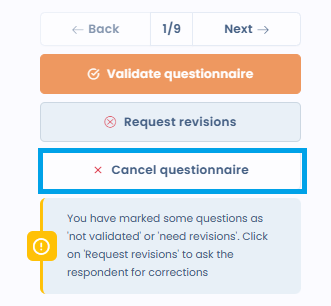
A new "Cancel questionnaire" action fill this gap:
- From a response pending validation, the owner can cancel the questionnaire, with confirmation and an optional comment (the reason is kept in the history and visible to the respondent)
- The "Cancelled" status appears as a red badge in the list, in filters, in reporting and in exports
- A cancelled response can no longer be edited by the respondent
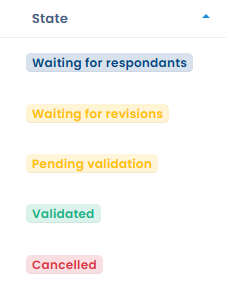 Validation labels have also been clarified (see Improvements).
✨ Improvements
Workflows: Link a message template to a rule
When configuring a "Send request message" action within a workflow rule linked to rights requests, administrators can now select an existing message template instead of manually entering the content.
Benefits
- Time savings: reuse your pre-approved message templates without re-entering content
- Guaranteed consistency: automatically sent messages always use the up-to-date version of the template (even if it is modified after the rule is created)
- Robust error handling: execution fails explicitly if the template is deleted (the message is not silently skipped)
How to use it
- Configure a workflow rule for rights requests
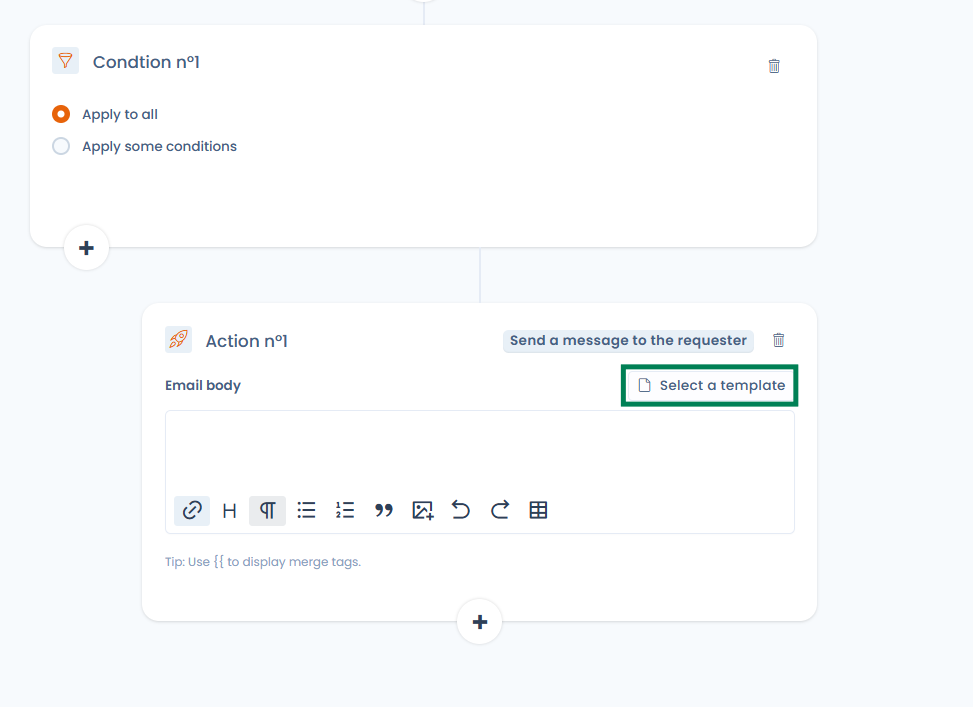
- In the "Send request message" action, click the "Select template" button
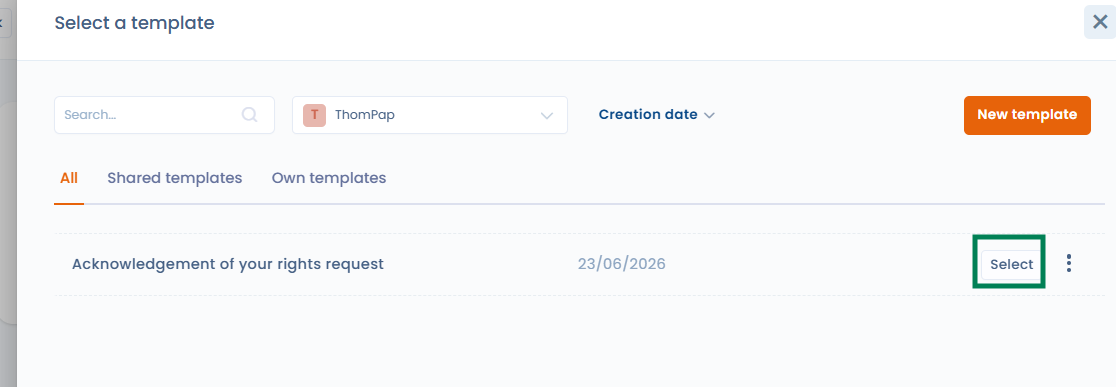
- Choose a "Request message" template from your workspace
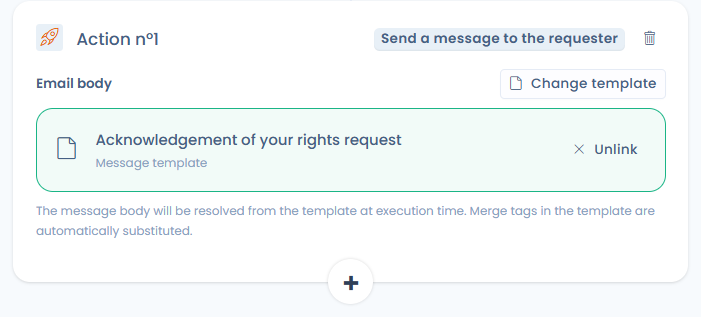
- When the rule is triggered, the template content is automatically retrieved, and custom variables (ex: {{ givenName }}, {{ refId }}, etc.) are populated
Compatibility
- Rules using manual content remain unchanged
- You can switch from a template back to manual content at any time by clicking "Remove"
Workflows: Up to 20 actions per rule
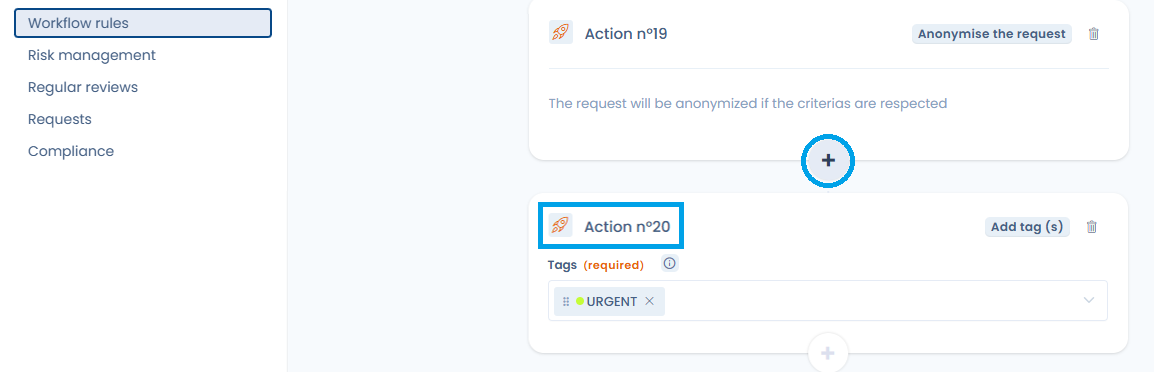
A workflow rule was limited to 3 actions per trigger. This limit is raised to 20 actions, to cover more complex internal processes without fragmenting your rules or multiplying them to work around the limit.
The "add" button stays active up to the 20th action, then becomes disabled with a message indicating the maximum has been reached. Existing rules are not affected.
Compliance: Export a project's operational lists
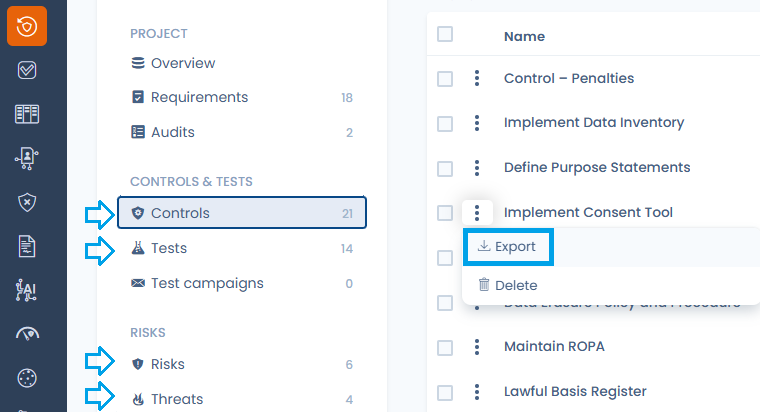
Every operational list in a compliance project can now be exported directly from the interface, as was already the case in the reference library. Export is available for:
- risk scenarios
- applied controls
- tests
- threats
You choose the format (CSV, Excel, JSON), export either the current selection or the whole filtered list, and select the columns to include (for CSV and Excel). The export respects the filters active at the moment it is triggered, and remains restricted to users with export permission.
Custom Reporting: Navigate straight to records
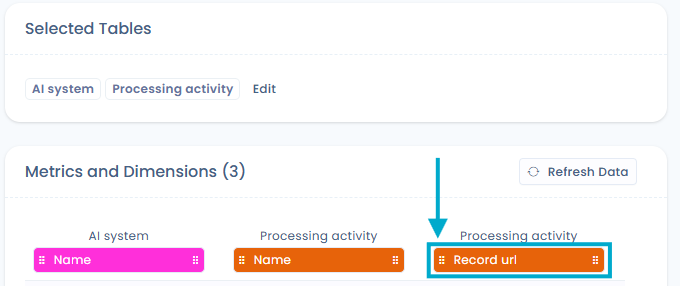
A custom report renders each row as a real object in the workspace. Until now, to get back to the source of a row you had to read its technical identifier (an unreadable GUID) and then search for the object manually in its module.
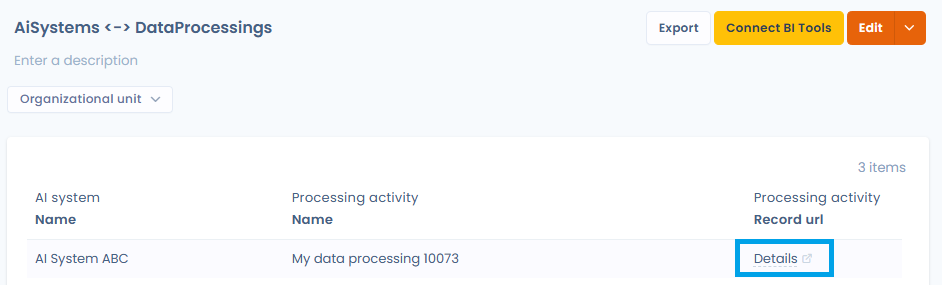
A new "Link to resource (url)" dimension is now available for object tables that have a dedicated record: data processings, data subject requests, data breaches, assets, stakeholders, audits, security measures, contracts, AI systems and tasks. Once added to the report, each row shows a clickable "Details" link that opens the object's record in the right module — in a new tab, taking the current workspace into account. The column is also included in exports (as a URL).
Record of processing activities & AI Systems: Asset status in the list
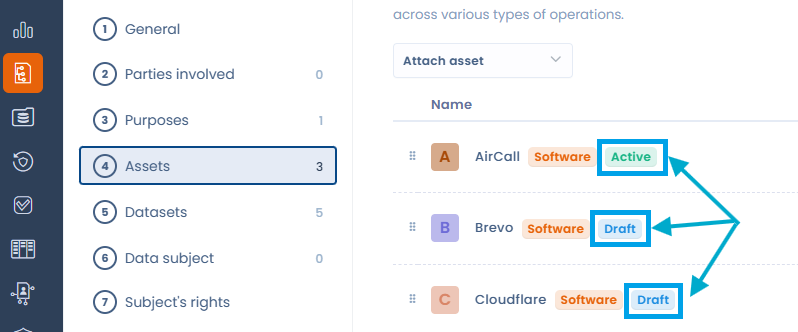
In the Assets section of a data processing as well as of an AI system, each linked asset now shows a badge indicating its status — Draft or Active — next to its type badge.
You can therefore spot at a glance, without opening each asset one by one, those whose qualification is not yet complete. The badge appears both in view and in edit mode, for all assets (internal, external or inherited); it is informational only and does not change the asset's status.
Data subject right requests: Clear all statistics filters in one click
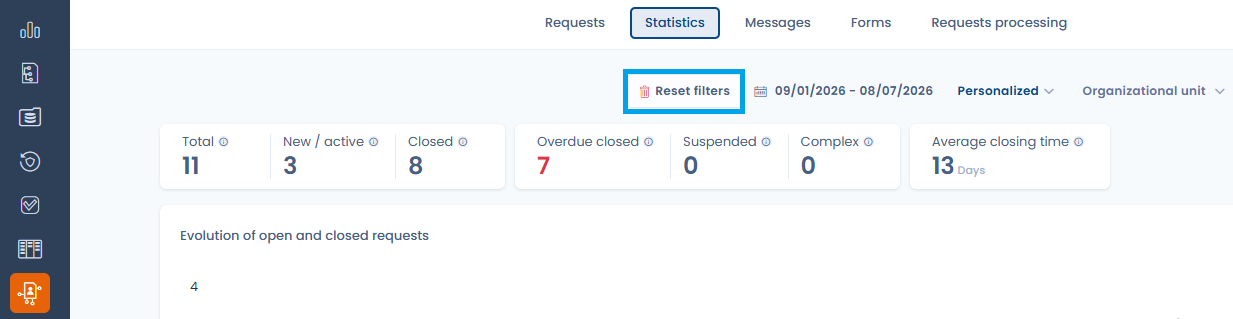
The requests Statistics tab offers many filters (period, organizational unit, workflow steps, collection form, trash, anonymized requests, advanced filters). Getting back to the default view previously meant resetting each filter one by one.
A "Clear filters" button now resets all filters in a single action and immediately reloads the default view. It only appears when at least one filter is active, then disappears once the reset is done.
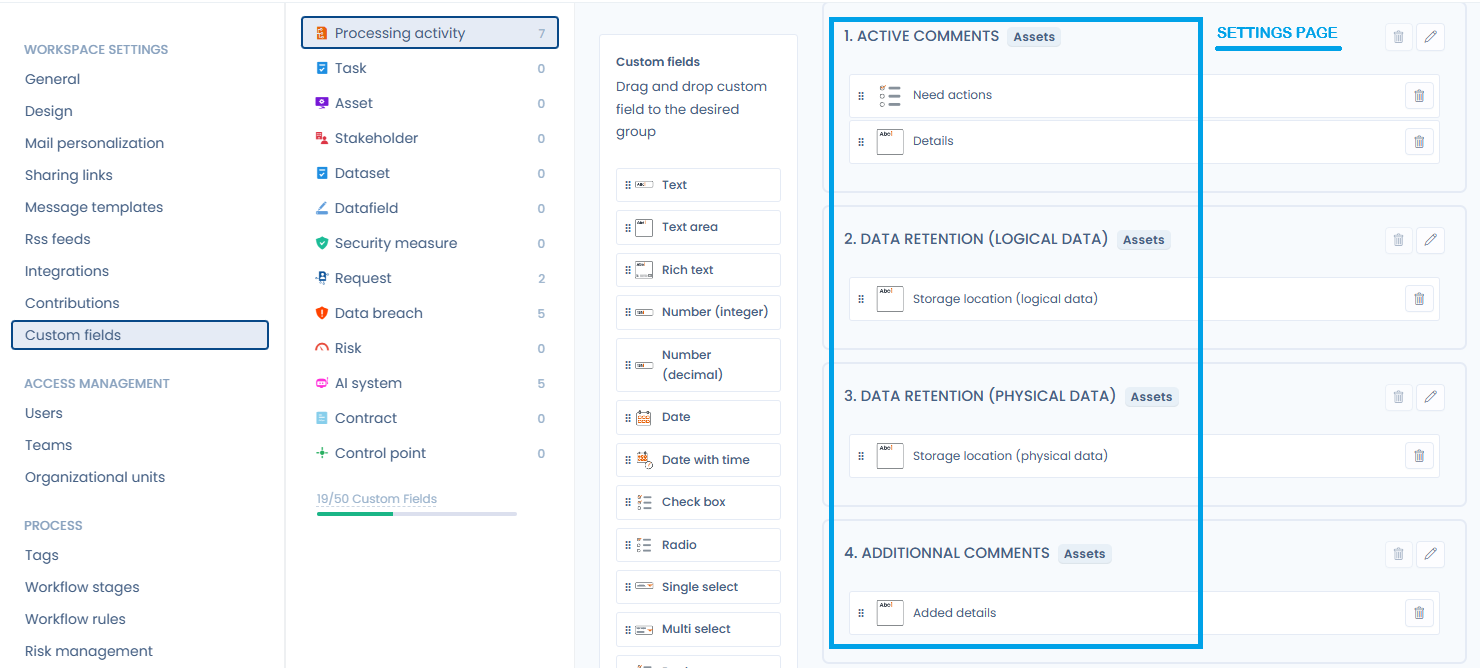
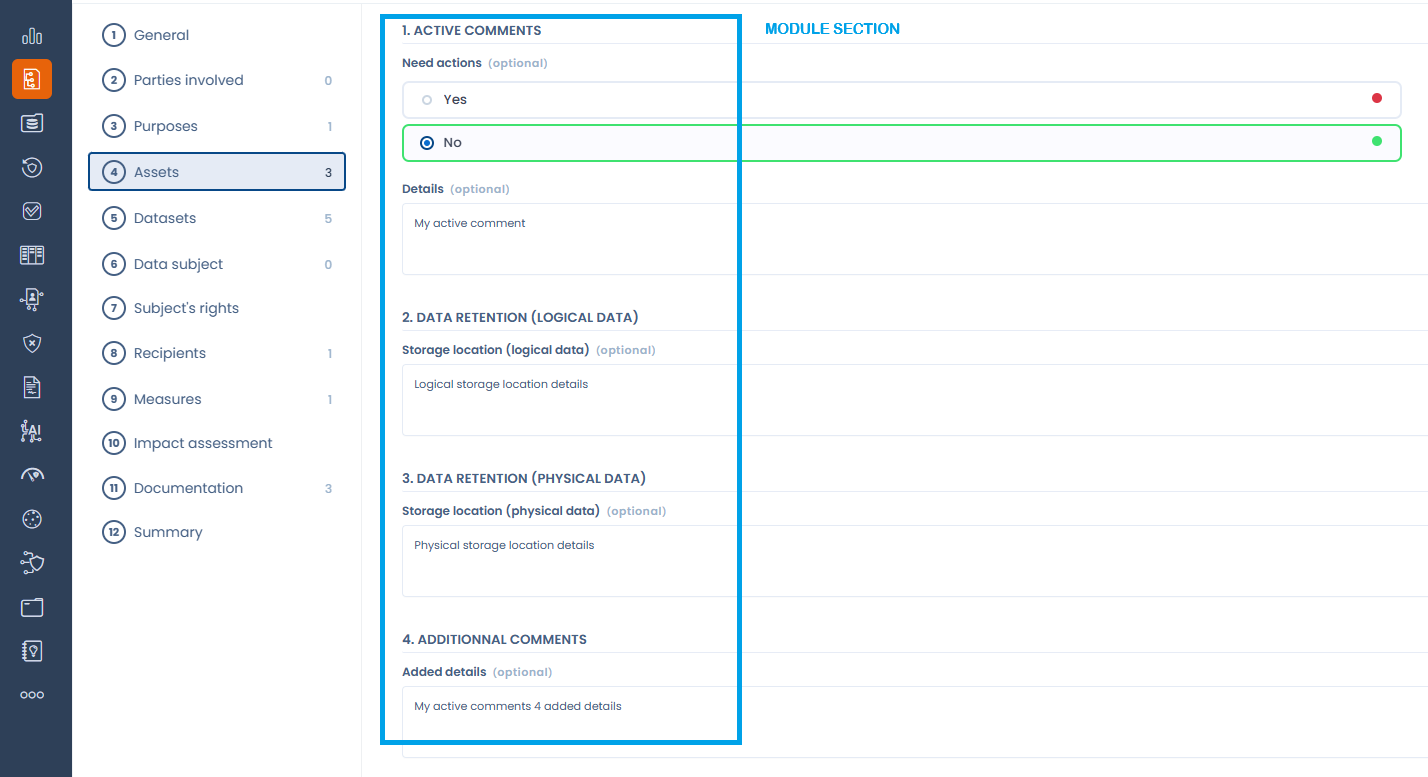
Custom fields: A consistent display order across screens
The order of custom field groups defined on the settings page (by display area, then alphabetically by group name) is now respected across entry forms, view screens and generated documents.
Questionnaires: Clearer validation labels and statuses

The vocabulary used when reviewing responses has been harmonized for clarity:
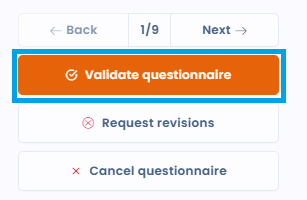
- The "Publish questionnaire" button becomes "Validate questionnaire", in line with the "Validated" / "Not validated" statuses
- A "Not validated" status replaces "Refused": the response has been reviewed but does not meet the requirements
- The "Overdue" column and filter are made explicit
Data subject right requests: the "Include recycle bin" toggle is now always visible in Statistics
In the Statistics tab of the Data subject right requests module, requests in the recycle bin are excluded from the displayed figures by default. An "Include recycle bin" toggle already let you add them back, but it was hidden inside the "Filters" panel: there was no way to tell immediately whether the total and charts accounted for the recycle bin or not. Some totals could therefore look incomplete or inconsistent.
This toggle is now displayed directly on the filter bar, next to the period, organizational unit and steps selectors and the "Filters" and "Print" buttons. Its state is always visible.

In practice:
- The "Include recycle bin" toggle is always visible, with no need to open the "Filters" panel, and its on/off state is identifiable immediately.
- When turned on, requests in the recycle bin are included across all statistics (total count, indicators and charts); when turned off, they are excluded again, with an immediate recalculation.
- By default, the recycle bin stays excluded when the tab opens, and "Clear filters" resets the toggle to that state.
- The "Exclude anonymized requests" toggle remains in the "Filters" panel.
You can now always tell which set of requests the displayed statistics cover.